
Dev Tool Time: Setting up MATE & i3
A guide to combining tiling window managers with desktop environments like ThePrimeagen.

As you probably know by now in the past I used exclusively tiling window manager workflows with the likes of dwm, bspwm, hyprland, etc. but recently I think I may have found a better way of doing things. After watching ThePrimeagen I’ve decided to try pairing up i3 with the MATE Desktop Environment and boy was it worth it.
What is i3?
i3 is a tiling window manager that maximizes window space and creates room for new windows as needed, allowing you to stay focused on your tasks. It is designed with a keyboard-centric approach, utilizing convenient keybindings for effortless window launching, resizing, switching, and more, all without requiring mouse interaction.
The only drawback of i3 is that it doesn't substitute your desktop environment. If you exclusively use i3, you'll need to handle the setup of your WiFi, Bluetooth, system preferences, suspend/resume, and other aspects yourself. As I've grown older, my priority has shifted from customizing my setup to completing tasks more efficiently. I find the process of configuring applets and basic features to be tedious and uninteresting. Instead, I've opted to use MATE for those purposes.
Enter MATE
MATE is a desktop environment, meaning that it handles everything for you. It has its own window manager, set of default apps, themes, etc. It's a fork of GNOME 2, so it's got a classic feel to it but is actively maintained and it has no problem if you tell it to use i3 as its window manager.
Using i3 with MATE
There are two options for achieving this. You can either run i3 alongside the MATE dock, applets, etc., or you can replace MATE's window manager with i3. We'll be focusing on the latter approach.
Now to the fun stuff. Keeping things simple, go ahead and install Ubuntu Mate or another distribution of your choice but if it doesn’t use apt, I assume you know what you’re doing. Next install i3 and dconf-editor with:
sudo apt-get install i3 dconf-editorForeword
If you’re planning to use the “Windows button” as your MOD key (the primary button for your keybinds), make the following changes to your layout, otherwise skip to changing the window manager.
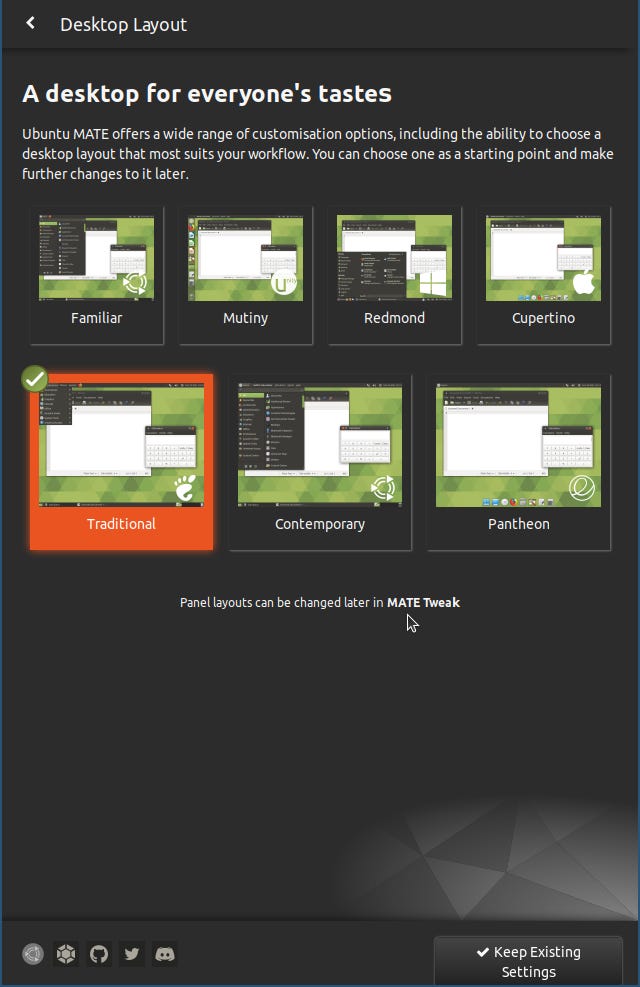
In the Welcome App, head over to Desktop Layout and choose a layout such as Traditional, that doesn’t make your app menu open up when you press the windows key.
Changing the window manager
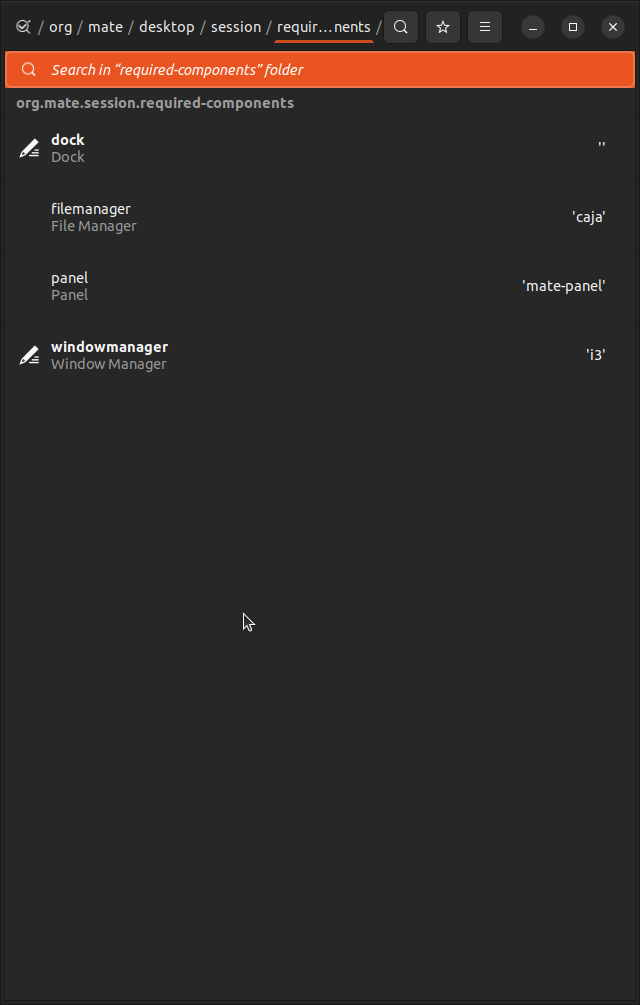
Open dconf-editor and head over to org > mate > desktop > session > required-components and change windowmanager from marco to i3.
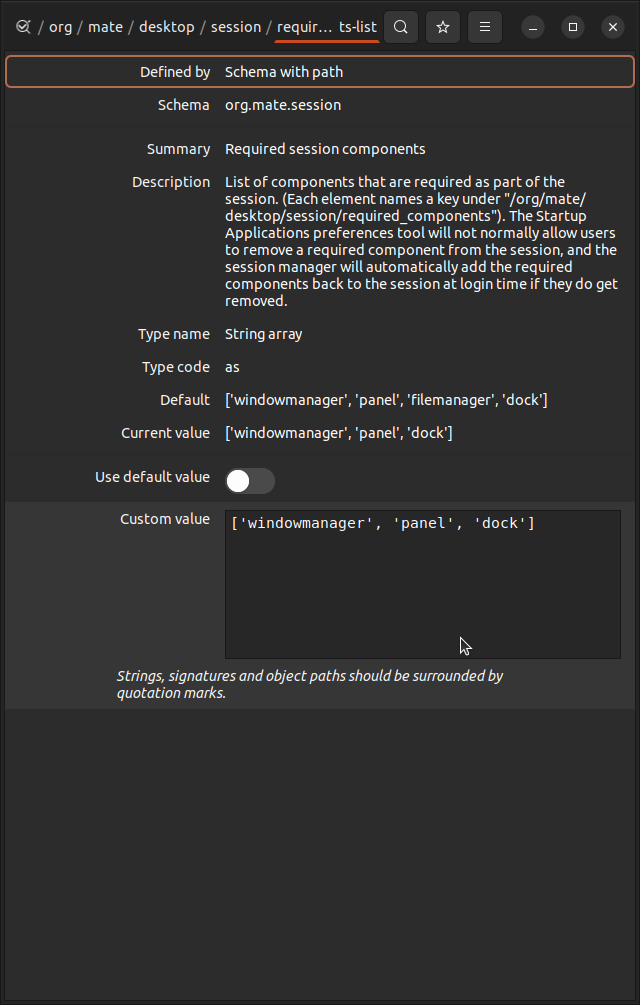
Then head up one level to org > mate > desktop > session and in required-component-list, delete filemanager. Without this MATE will open a background window for your desktop that will cover everything.
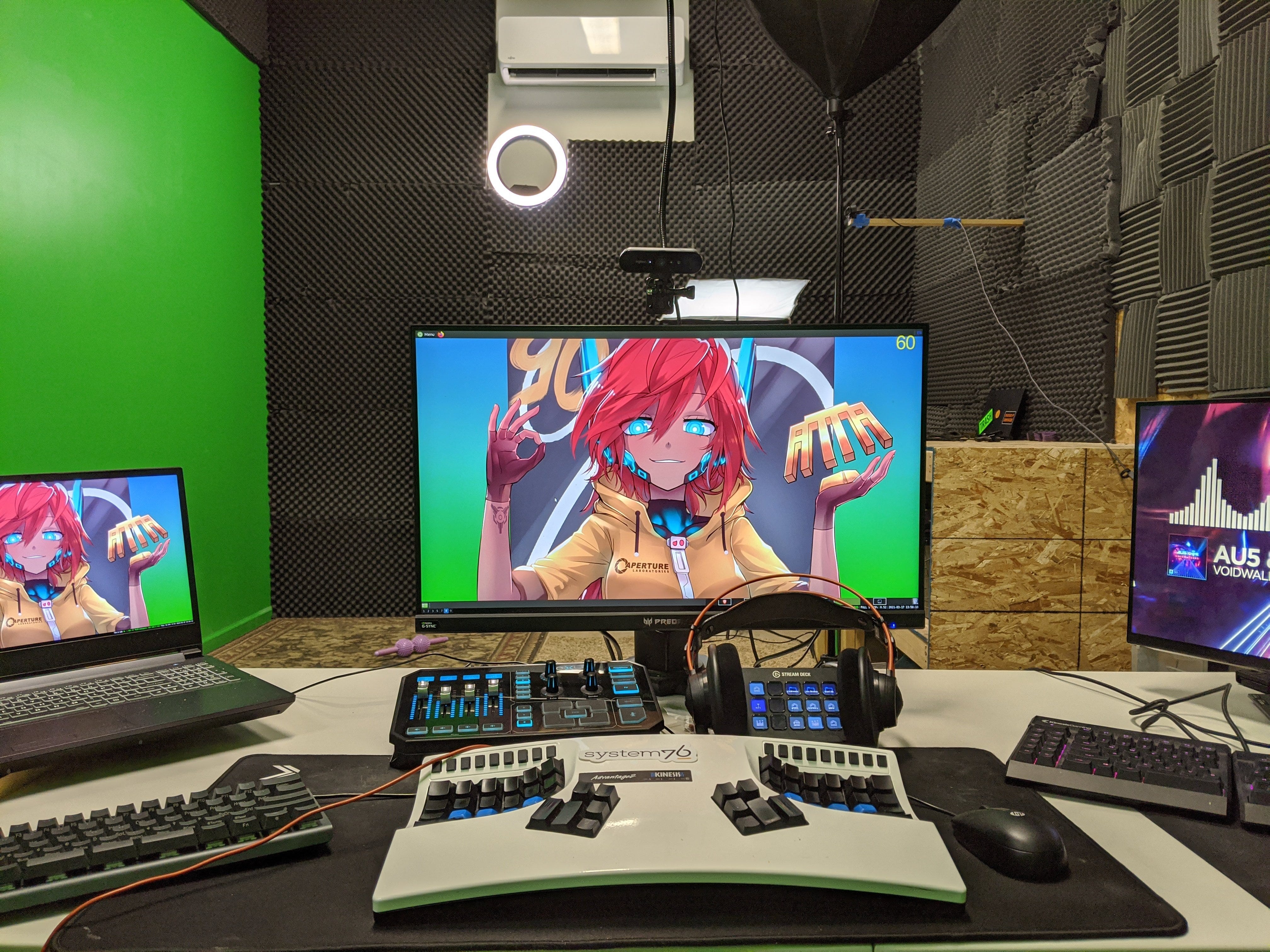
And done! Log out or reboot and log in again, you should find yourself in MATE, but with i3 running too.
In the past, there used to be a way to get rid of i3bar and keep the functionality of the i3 workspaces, but the project has been abandoned, so until I find another way, I’m fine with using i3bar.
Now you can have a setup similar to ThePrimeagen’s 😎
All that’s left is setting up neovim and tmux.
References
https://mattgreer.dev/blog/mate-and-i3/
https://about.sourcegraph.com/blog/dev-tool-time-theprimeagen